Weekly sales vs staffing




Connect Deputy. Can also use Dropbox, OneDrive or Google Drive.
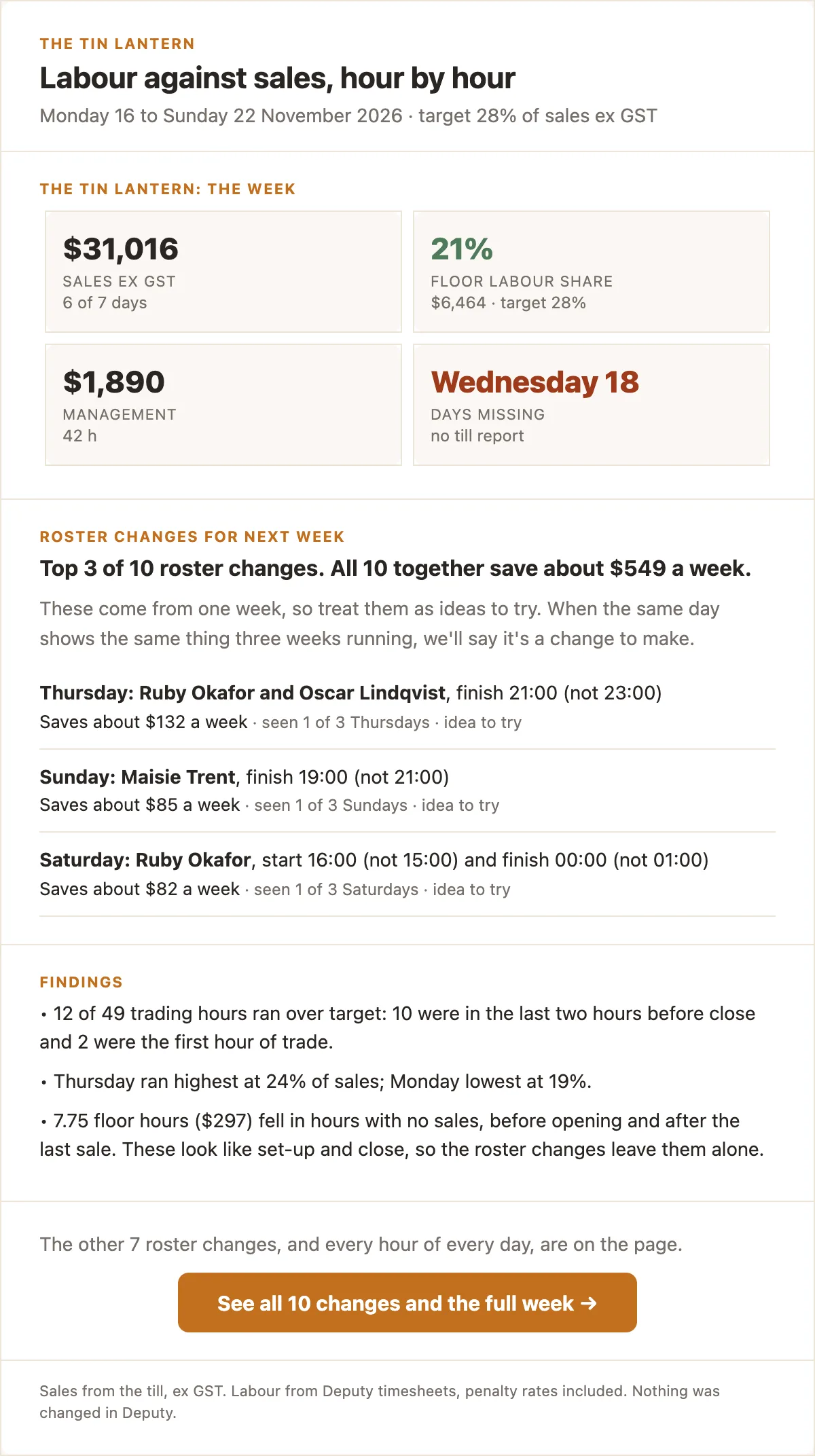
For hospitality venues. Every Tuesday at 9am, StoriBot reads last week's shifts and pay from Deputy and your sales from the till, through Deputy or a cloud folder. You see labour as a share of sales, hour by hour, and which shifts to start later or finish earlier next week. It only reads, and the roster stays yours to change.
Connect Deputy. Can also use Dropbox, OneDrive or Google Drive.
The prompt StoriBot starts from
3 parts still to fill in.
Fill in what you can. StoriBot asks about anything left empty before it starts. Change anything else in the whole prompt.
Sign up, connect Deputy, and the first run is in your inbox in minutes.
What lands in your inbox
How it works
Connects to
- Deputy
Can also use
- Dropbox
- OneDrive
- Google Drive
- 1
You sign up. StoriBot reads your prompt and asks anything it needs to know. Then it asks you to connect Deputy.
- 2
Your first result is in your inbox in a few minutes.
- 3
Then it runs every Tuesday at 9am, and you hear from it weekly, on Tuesday. Reply to the email to ask for more, or reply “stop” to end it.
Operation level control over read, write and irreversible actions, with one switch that keeps your whole organisation to reads.
Questions
Is it safe?
Why not just use an AI assistant?
Can I change it later?
How do I stop it?
Where should my reports go?
More jobs
See all jobsFor finance and operations
Monthly management report
On the 10th of each month at 8am, StoriBot reads last month's accounts from Xero, MYOB or Business Central and makes your management report. It covers revenue, margin, costs, net result and cash against last month, last year and budget, works out your cash burn and runway, and names the biggest cost moves. It only reads. You check the page, then share it with your team, a board or investors.


Uses any one of: Xero, MYOB or Business Central.
For finance and operations
Weekly cash and who owes what
Every Monday at 7am, StoriBot reads Xero, MYOB or Business Central and tells you how much cash you have and how it moved since last week. You see the five customers to chase first, the bills due this week, and what cash is left once they are paid. It only reads, and what you do next is up to you.
Uses any one of: Xero, MYOB or Business Central.
For finance and operations
Weekly stock and orders
Every Monday at 7am, StoriBot reads Business Central and tells you which items are low or gone, which customer orders are not fully shipped and how late they are, and which supplier orders have not arrived. It also names what sold most and least last week, for each company you run. It only reads, and what you do next is up to you.
Connect Business Central.
Give this one to StoriBot.
Change the prompt if you like. Your first email arrives a few minutes after you sign up.