StoriBot turns a company's filings and your house style into an interactive mining research note — valuation, reserves and the study case in one scrollable page, every hard number traced back to a source file and drafted in your own voice. Below is the whole build, one screen at a time. From a blank workspace to a shareable link takes about thirty minutes.
Why StoriBot for mining company research
- On-brand, on-message. Customise StoriBot with your brand guidelines and house voice so every note reads like yours. The AI narrates; your data computes the numbers, not the model.
- The filings are enough. The annual report, the study, the quarterlies, capital structure and peer multiples — the documents already on the record are the inputs, and every figure cites one of them.
- Always current. Edit and refresh the same link as the story moves — no re-export, no v2 floating around.
AWS Sydney · No training on your data · Lineage on every output
Home page
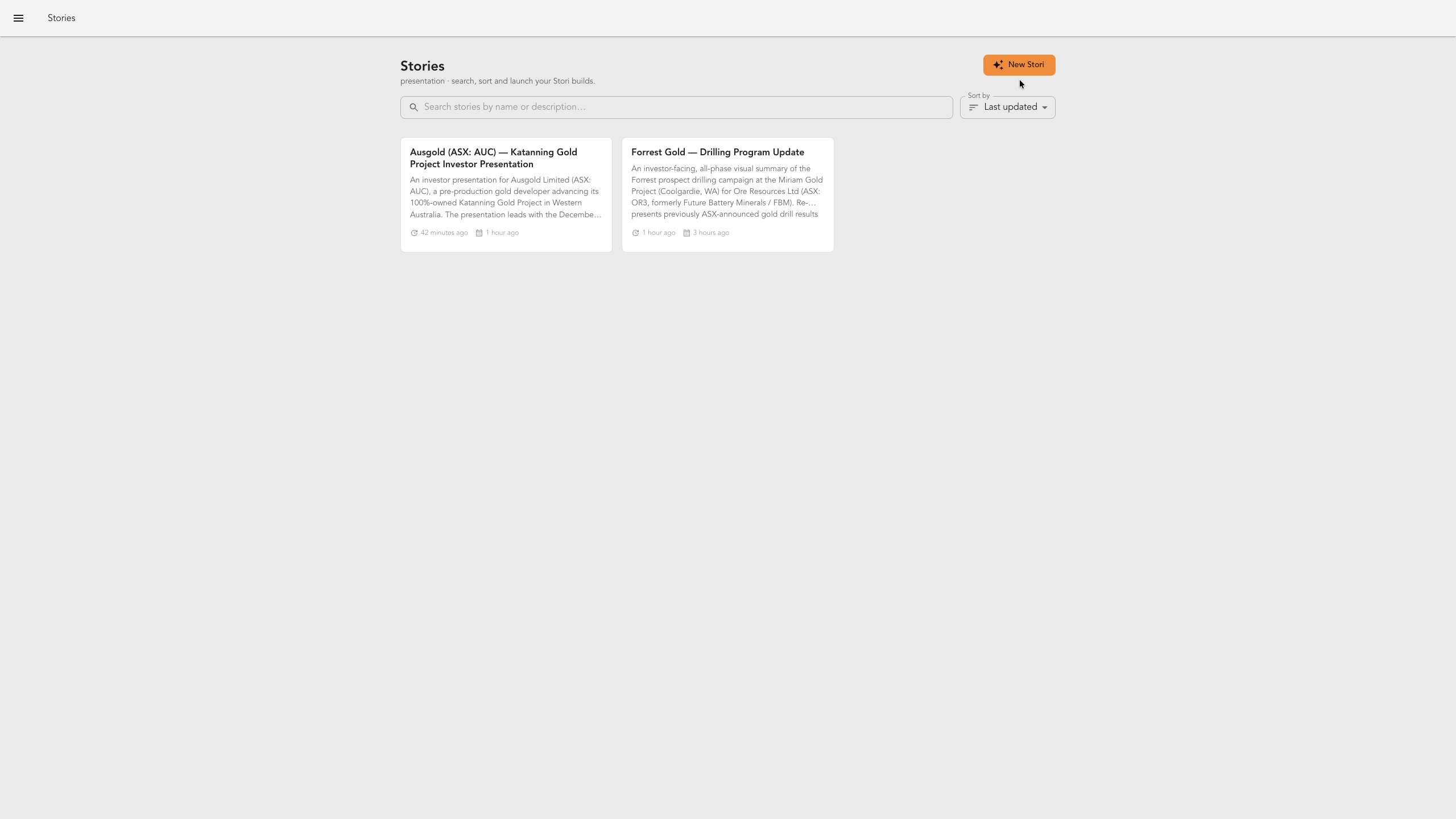
This is your StoriBot home page. It lists every stori you've built so far. To begin a new one, click New Stori.
Choose a template
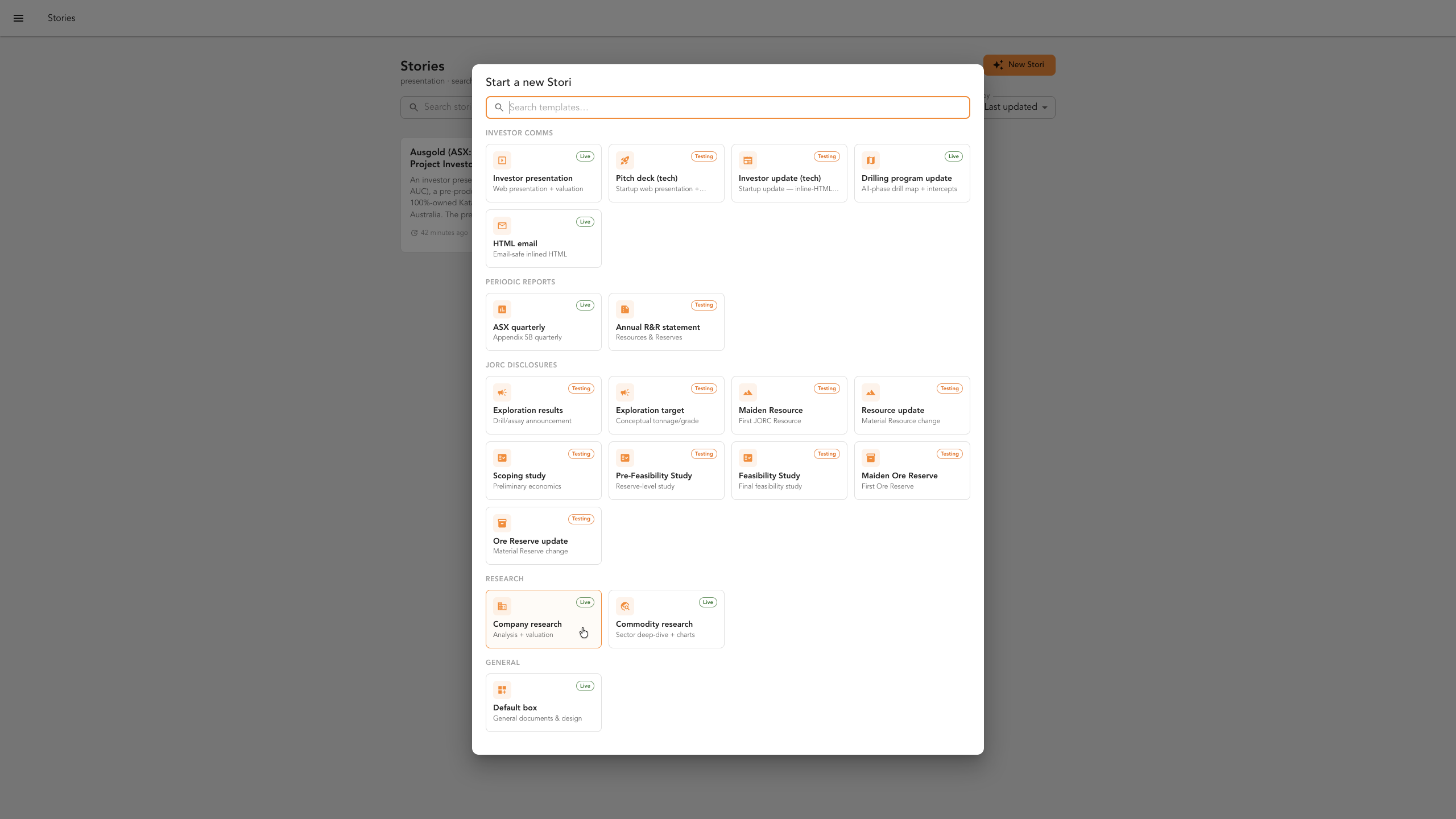
After clicking New Stori, you'll see the template gallery. For this build, choose Company research.
Choose the project stage
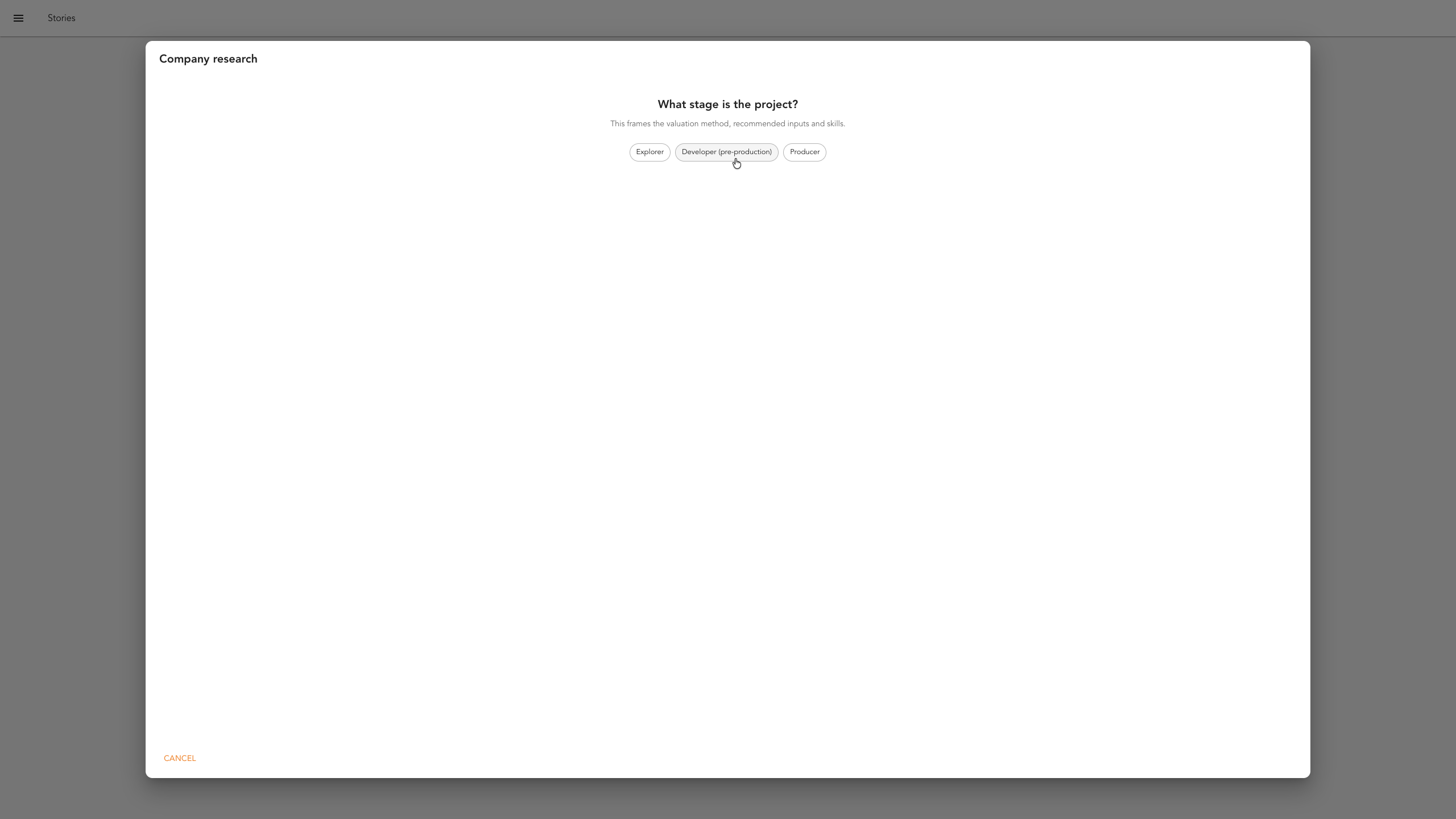
Choose the stage the company's project is at — explorer, developer or producer. This frames the valuation method, the recommended inputs and the skills for the build. Our demo subject, AusGold's Katanning Gold Project, is pre-production, so we select Developer.
Upload your data
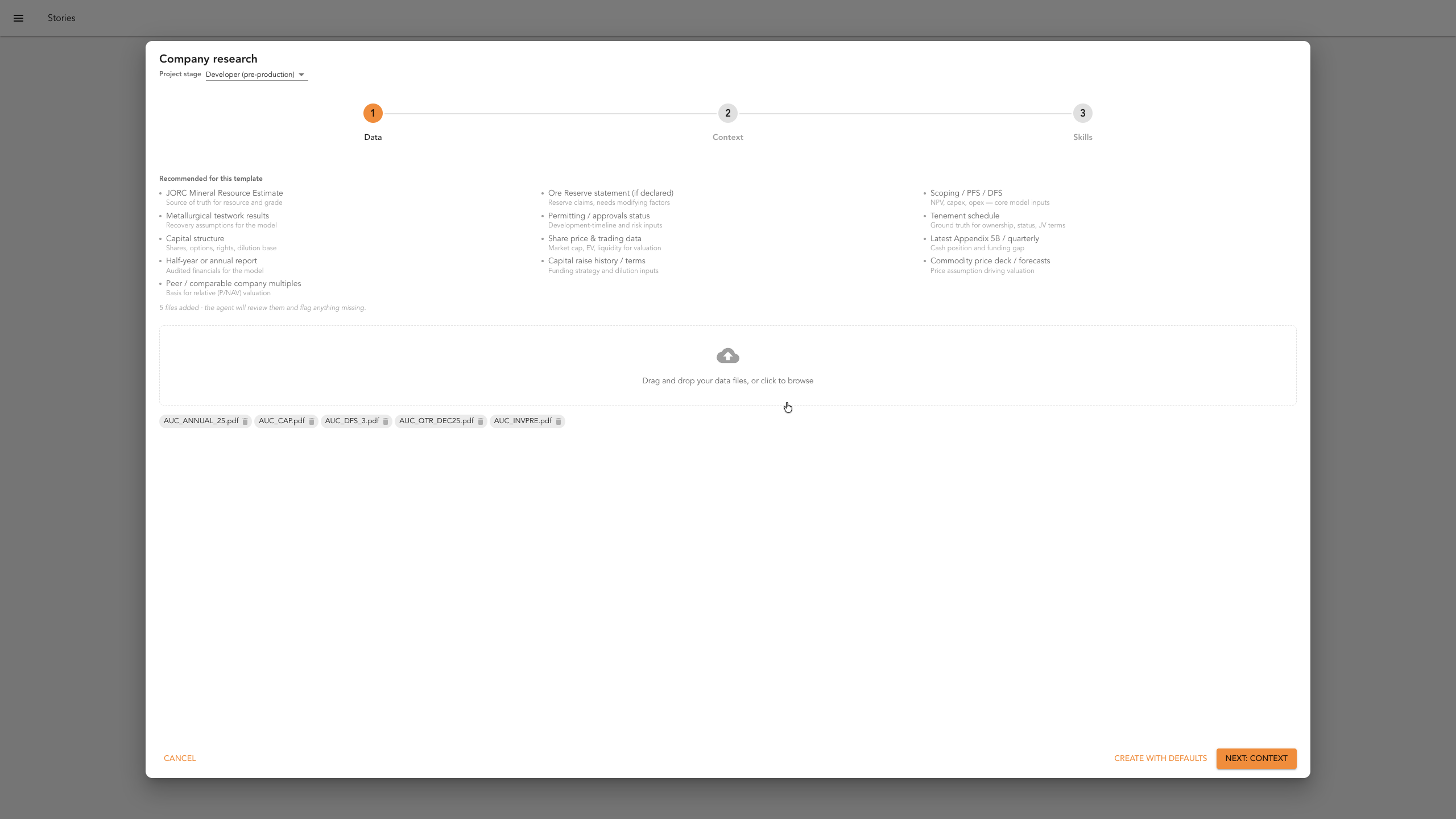
First, upload the data files — the annual report, the study, recent quarterlies, capital structure, share price and trading data, peer multiples and a commodity price deck. These become the source of truth for every hard number and claim in the research — if the note states a figure, it traces back to one of these. When your files are in, click Next to continue.
Add supporting context
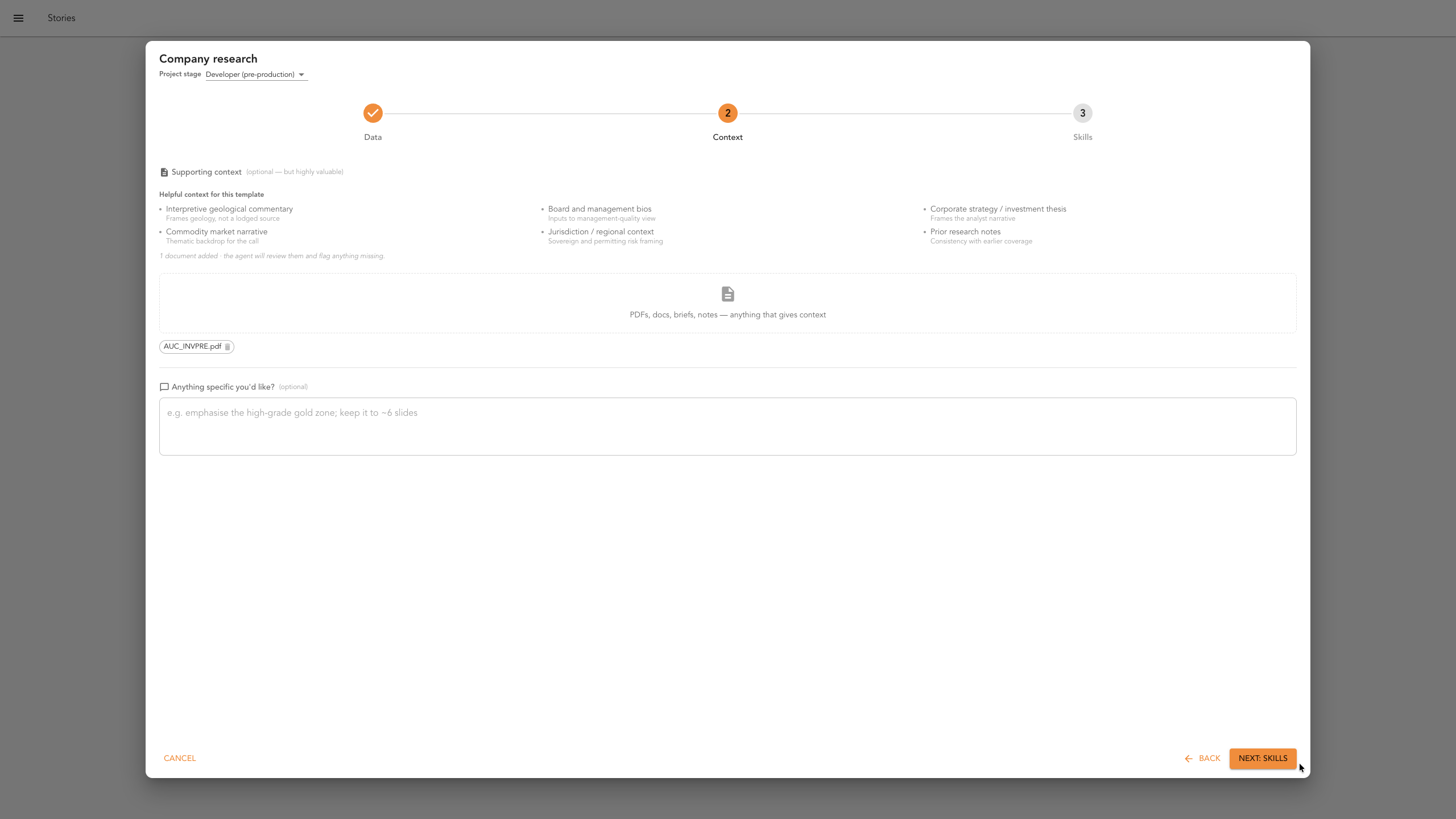
Next, add supporting context. This is the material that might help shape the narrative or provide an example to follow — here, we've uploaded a previous investor presentation to base the style off. You can also add your own prompt or anything else that might steer the output towards what you have in mind. Everything in this step is optional. Once these are attached, click Next to continue.
Choose skills
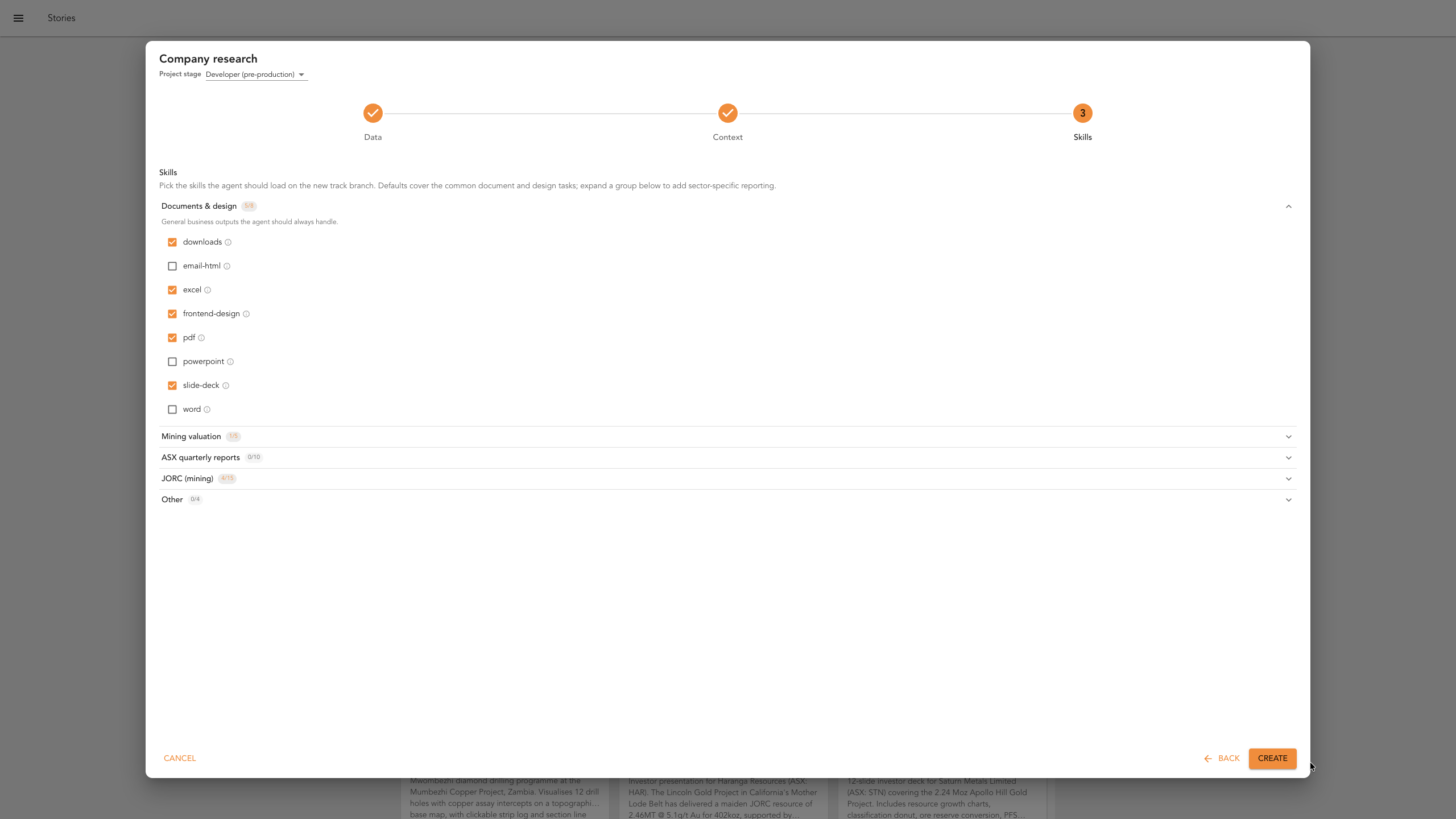
This is the skills screen. You can review and add any additional skills you think might be useful, but for this and any other template, you can leave the defaults as they are — the necessary skills are already selected for the research note. Click Create to continue.
Launch the workspace
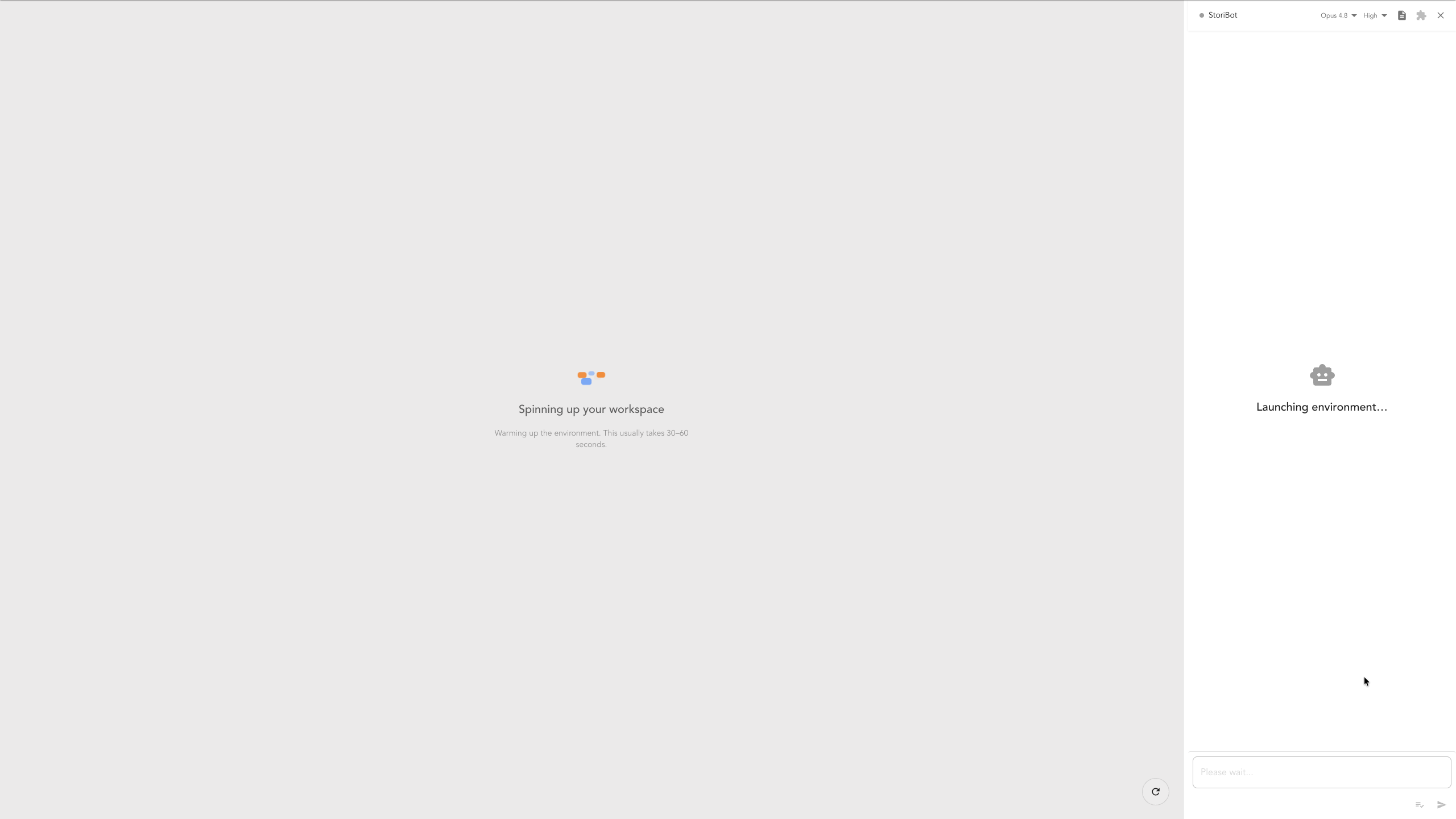
After you click Create, StoriBot opens your workspace. It takes a minute or so to spin up. The benefit is you get an entire workspace, which significantly extends what you can do with StoriBot. Once the workspace is ready, the agent will start building your research note automatically.
The agent starts
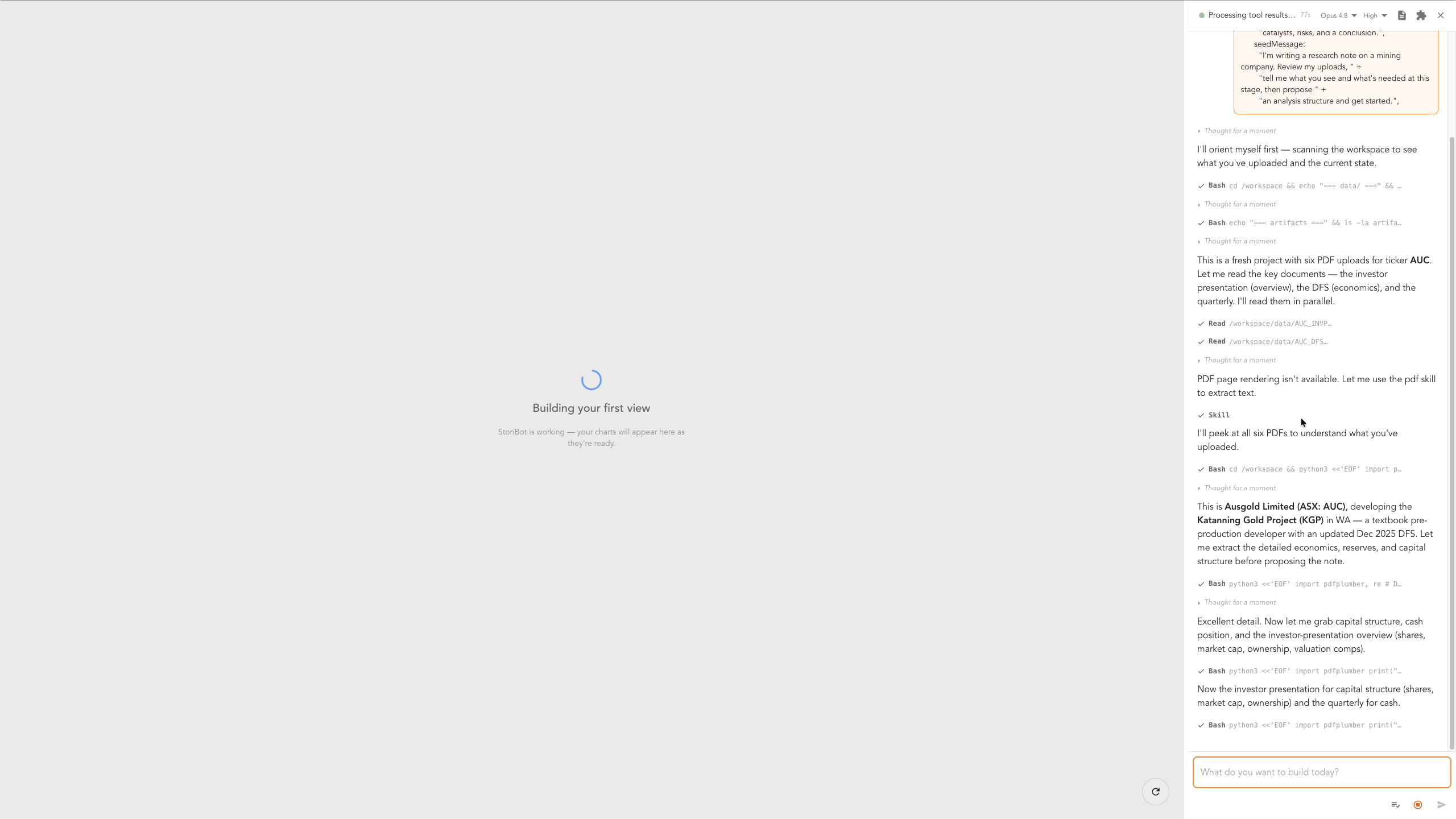
When you start from a template, like in this case, StoriBot begins building the note automatically from your data and context. You can refine the output at any time by typing additional instructions in the agent sidebar.
Answer the agent's questions
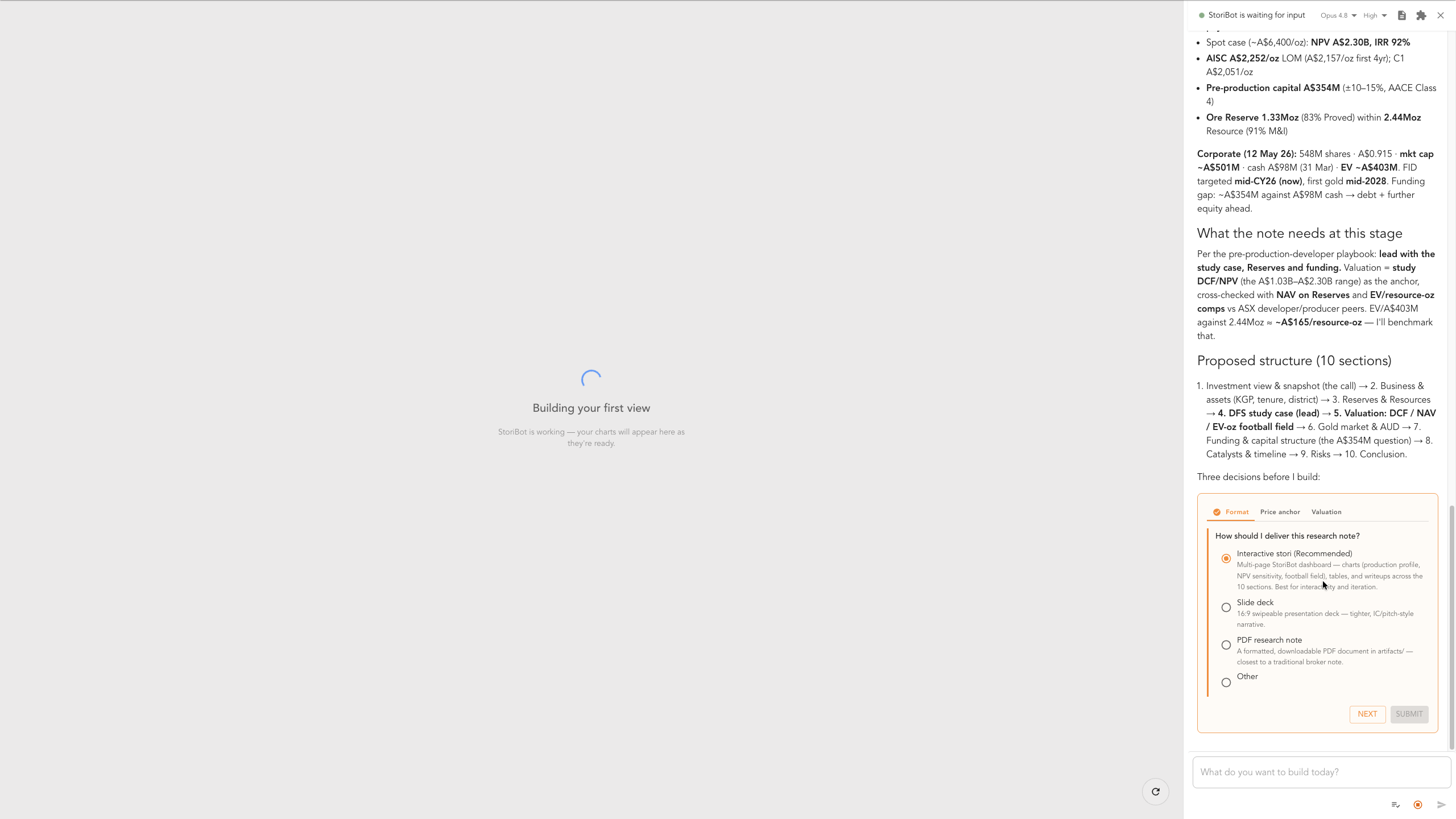
The agent may ask a question or two to tailor the note — for example, how to deliver it: an interactive stori, a slide deck, or a traditional PDF research note. Make your choices and click through — you can refine anything further once the first draft is done.
First draft and review
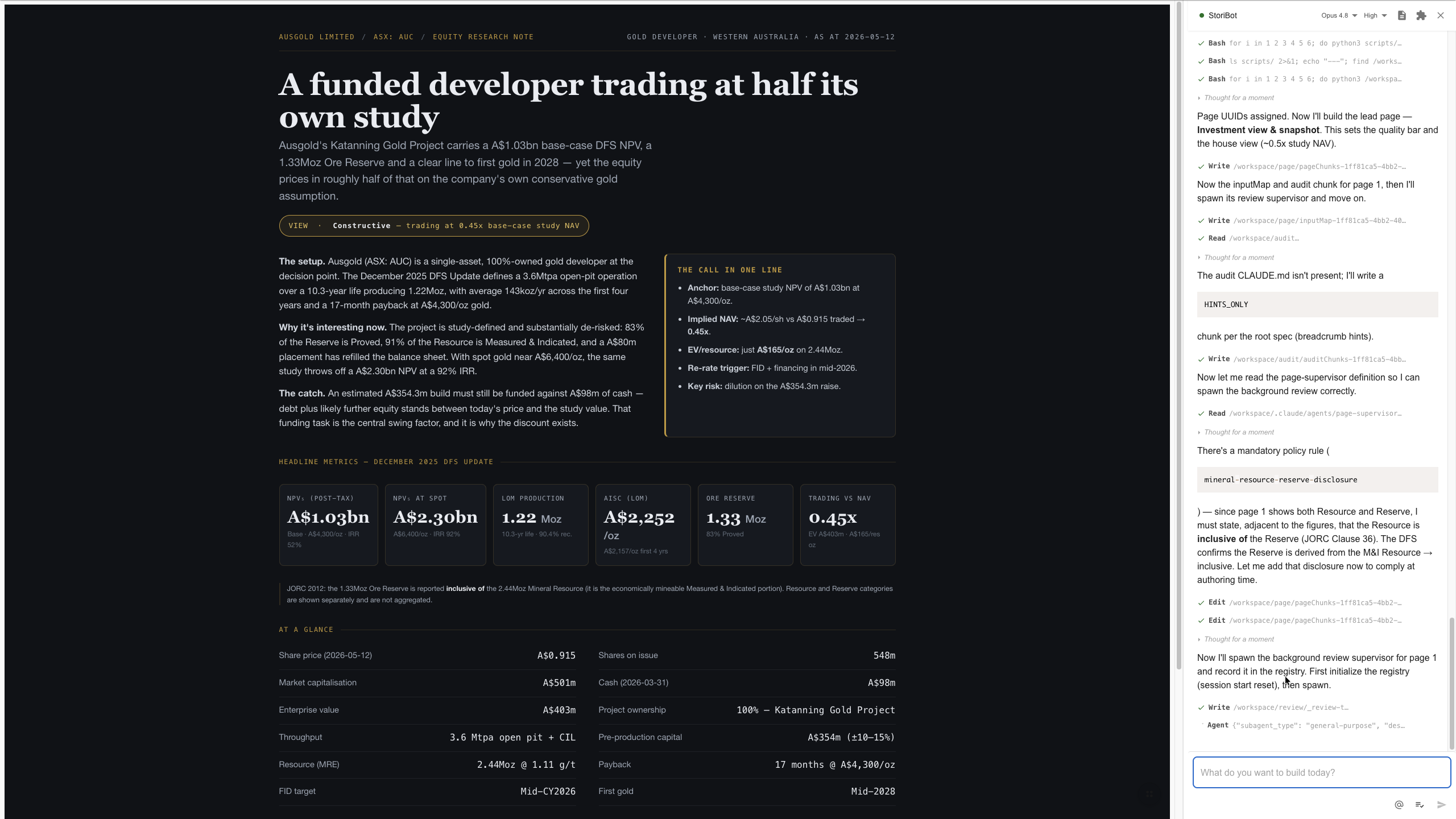
When the first draft lands, the agent spawns a reviewer to check the build end to end. You don't have to wait for it — view, edit, or request changes while the review runs in the background. Simply type any changes you want into the agent sidebar and the agent will rebuild the note for you.
Preview the stori and its slides
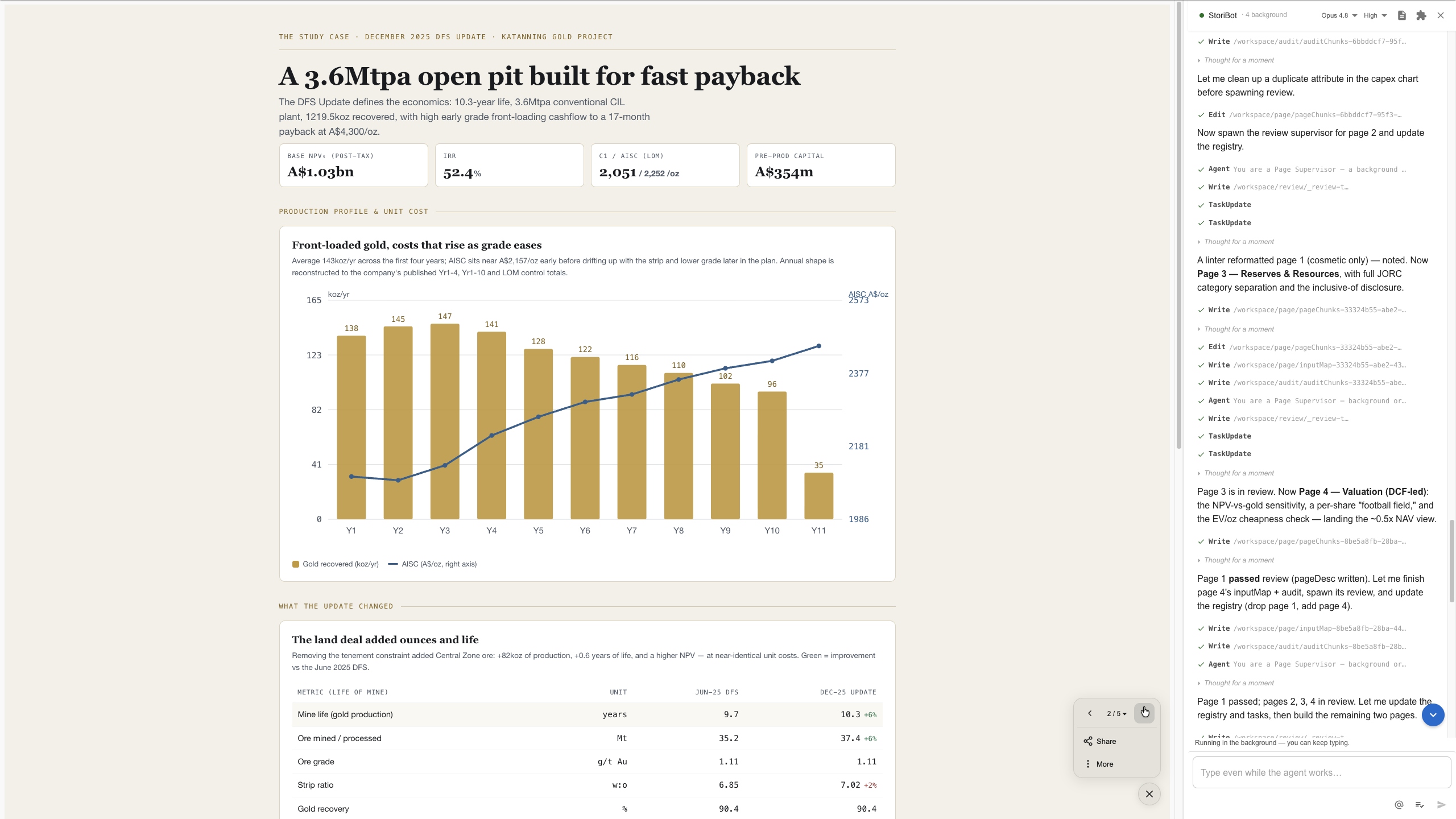
To swap between the scrollable mining research note and the valuation slide, use your arrow keys or click the sub-menu in the bottom-left corner.
Edit the words and numbers
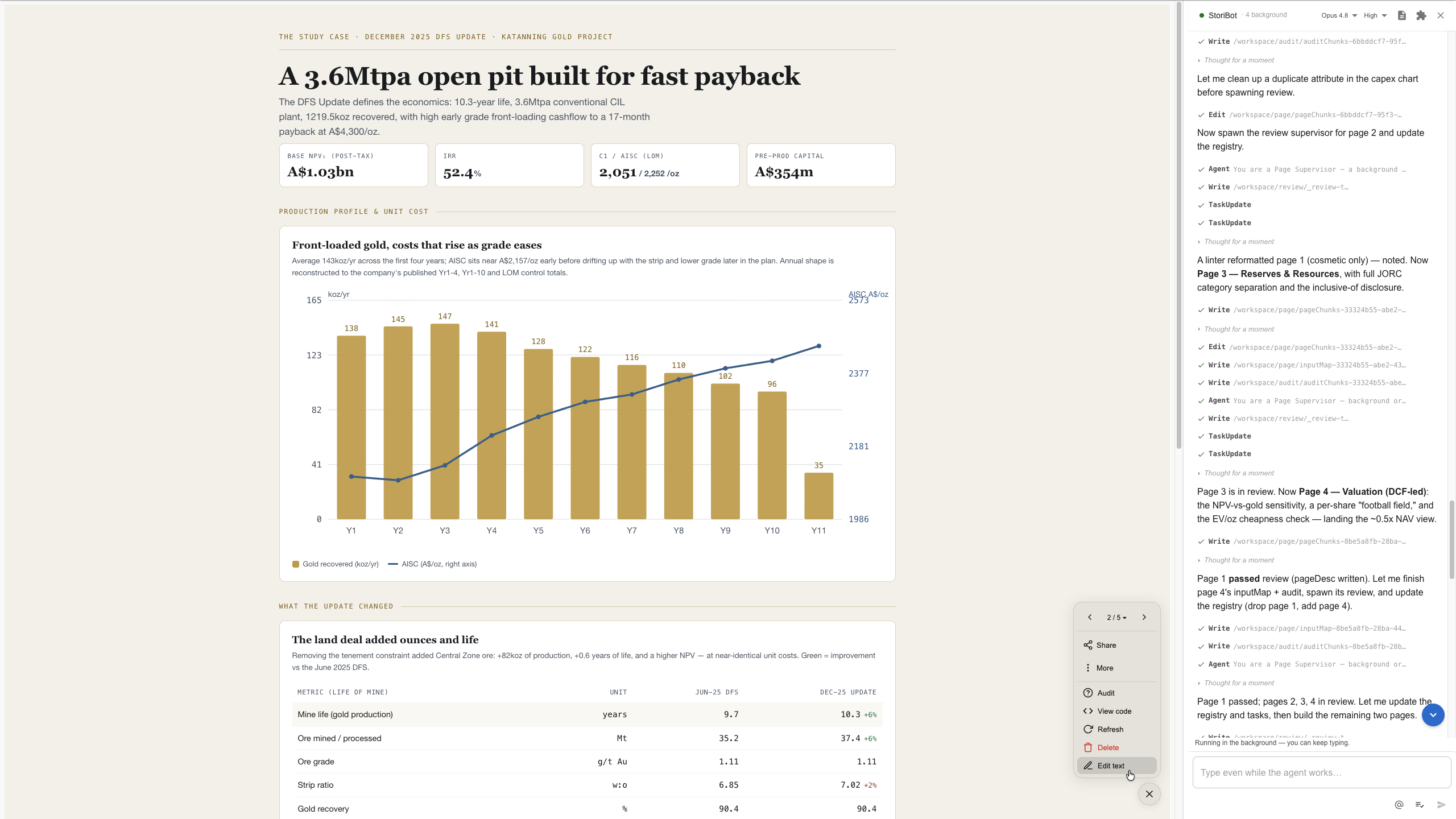
For specific wording changes within the note, open Edit text in the sub-menu. You can then click any word or number directly and change it in place.
Make broader changes
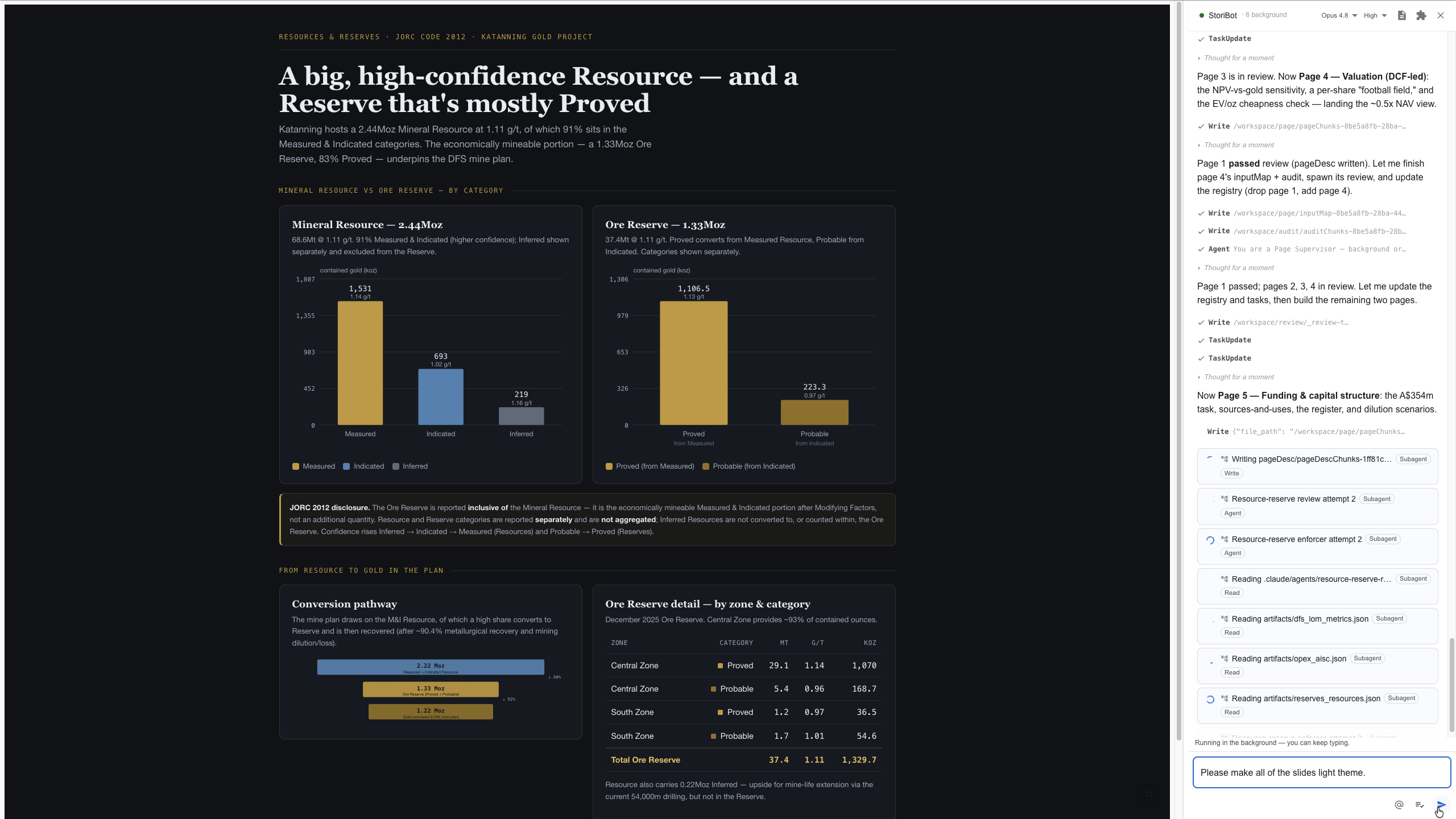
For bigger changes — repositioning sections, adding or removing elements, or changing the format — describe what you want in plain English in the agent sidebar, like the example shown here.
The agent rebuilds in the background
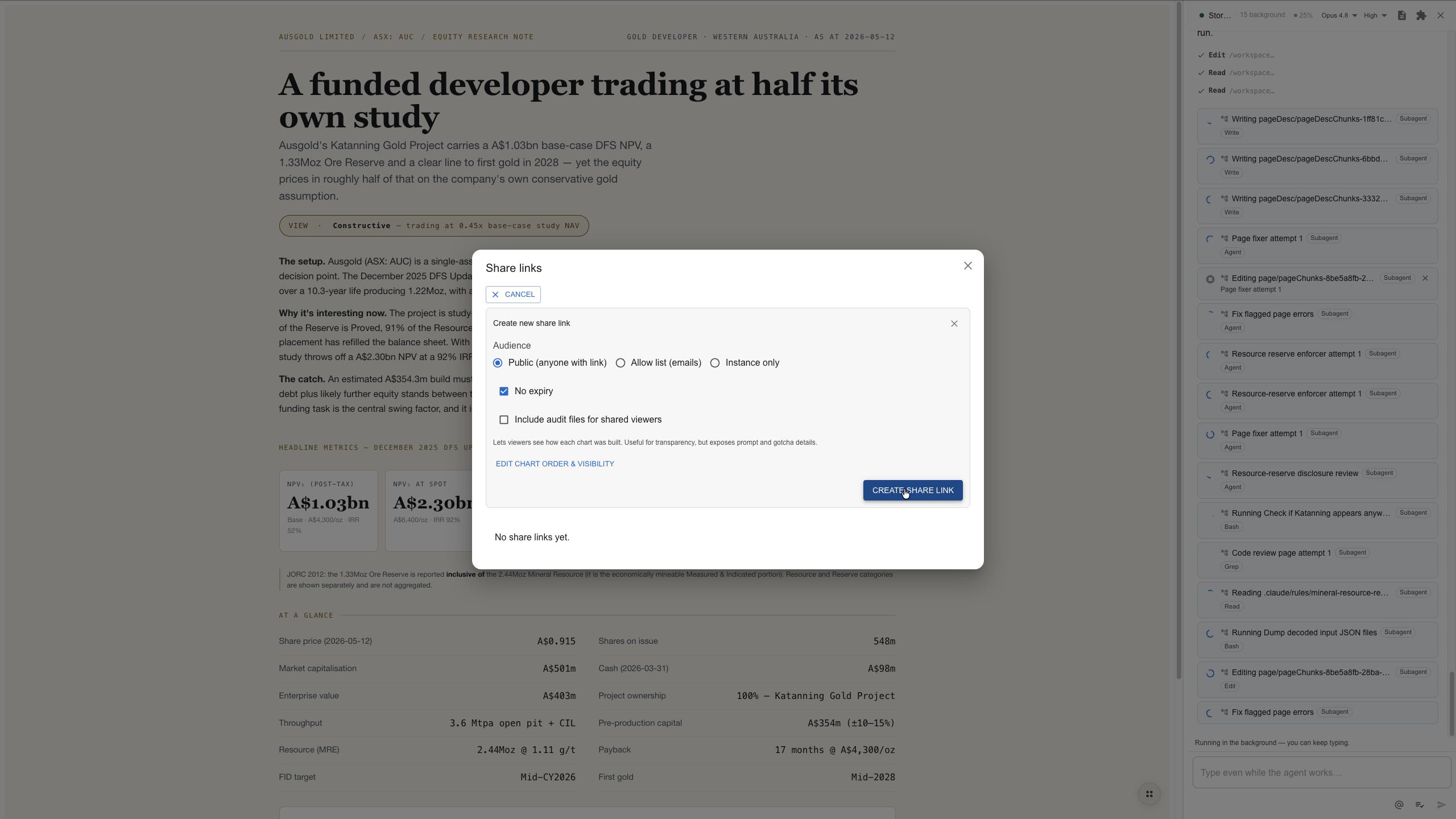
The agent then starts work in the background and makes the changes — you can keep reviewing while it runs.
Share the stori
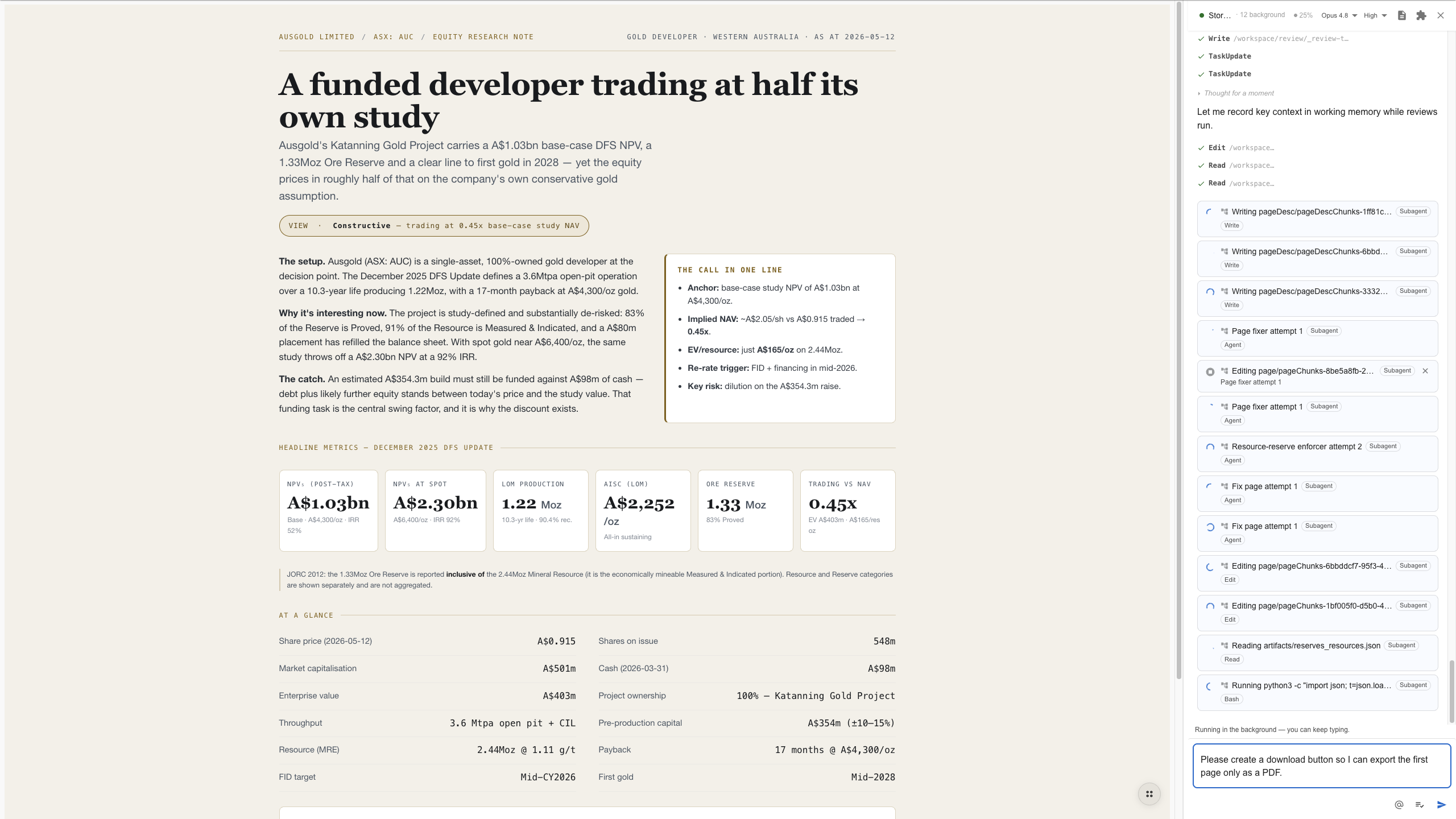
Once you're happy with the final product, open the sub-menu in the bottom-left corner, select Share, click New share link, and choose your preferences. The link is copied to your clipboard, ready to send.
Or export to another format
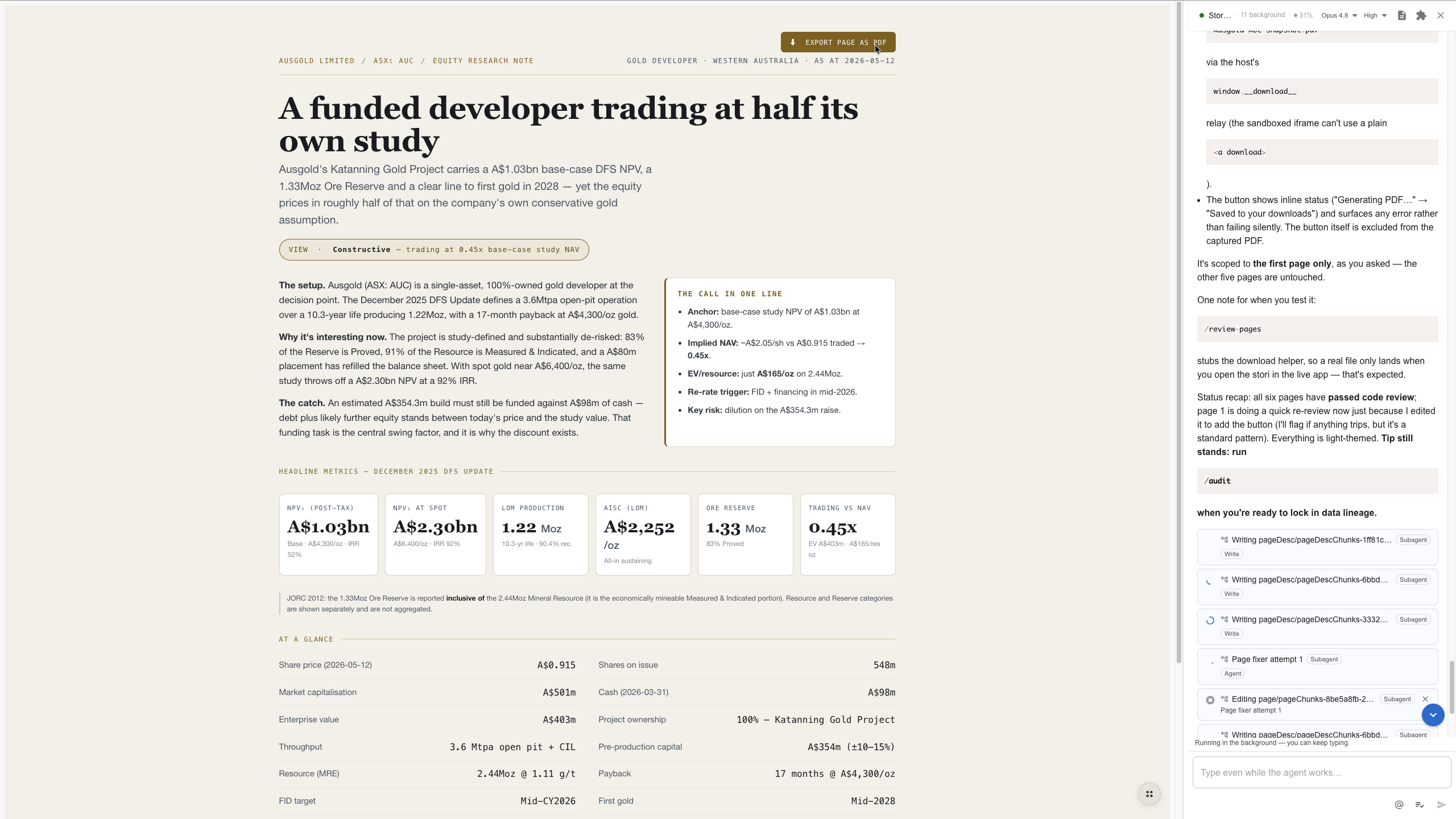
Want the note in another format, such as a PDF? Just ask the agent in the sidebar to add a download button. Click the button and the file saves to your device.
Your turn
That's the full build: the company's filings in, interactive mining research note out, every number traced to source. Build your own at app.stori.bot.